A PDF can be compressed by 50% to 90% without any visible quality loss when you match the compression level to the content type. PDFs full of images compress most aggressively (often 80%+), while text-only PDFs see modest gains (10-30%). This guide covers exactly which level to choose, when to compress, and how to do it in your browser without ever uploading the file.
What Actually Makes a PDF Large?
Three things account for nearly all PDF bulk: embedded images, embedded fonts, and retained metadata. Images dominate by a huge margin.
A 50-page text-only document typically weighs around 200KB. The same document with 20 high-resolution photos can easily exceed 50MB — a 250x increase from images alone. This is why PDF compression focuses primarily on reducing image quality and resolution intelligently.
PDF compression also optimizes fonts by "subsetting" — embedding only the characters actually used in the document, not the entire font family — and strips unused metadata like edit history, application IDs, and creation timestamps.
PDF Compression Levels Compared
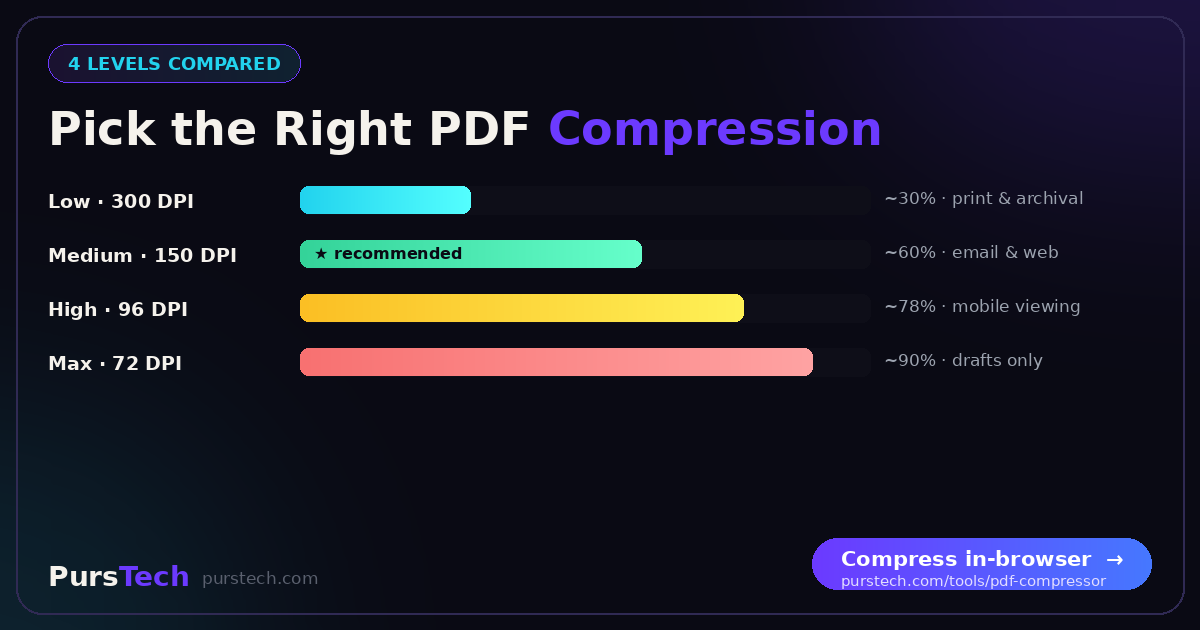
Most compressors offer 3 to 5 levels. Here's what each actually does and when to use it:
| Level | Image DPI | Typical Size Reduction | Best For |
|---|---|---|---|
| Low (best quality) | 200-300 DPI | 20-40% | Print-ready documents, archival |
| Medium (recommended) | 150 DPI | 50-70% | Email, web sharing, most use cases |
| High (small file) | 96 DPI | 70-85% | Mobile viewing, screen-only sharing |
| Maximum | 72 DPI | 85-95% | Thumbnails, drafts (visible quality loss) |
The sweet spot for most users is the Medium level. It cuts file size by more than half while remaining indistinguishable from the original at normal screen viewing distance.
How to Compress a PDF in Your Browser
The fastest and most private way to compress a PDF in 2026 is a browser-based tool that processes the file locally — meaning the document never leaves your device.
Step 1: Open the PursTech PDF Compressor.
Step 2: Drag your PDF into the upload area, or click to select.
Step 3: Choose a compression level. For most documents, Medium gives the best balance.
Step 4: Click Compress. Processing happens in your browser — typically 5 to 30 seconds depending on size.
Step 5: Download the compressed file. You will see the exact size reduction percentage.
When You Should (and Shouldn't) Compress
Always compress when:
• Emailing files — most providers cap attachments at 25MB
• Uploading to messaging apps — WhatsApp limits to 100MB, Slack to 1GB
• Sharing for web or mobile viewing
• Storing documents that will rarely be printed
Don't compress when:
• The document is going to be printed professionally — you need 300 DPI
• Legal documents with required image fidelity, like contracts with signatures
• Source documents you may edit later — compress copies, keep originals
• Files already under 5MB — the gains rarely justify the time
The Real Quality vs Size Tradeoff
Fear of "losing quality" stops many people from compressing files that desperately need it. The reality: at Medium compression (150 DPI), almost no one can tell the difference on a screen.
Documentation from the W3C Web Accessibility Initiative notes that 150 DPI exceeds the resolution of most consumer screens, including 4K monitors viewed at typical desk distance. Higher DPI only matters when zooming dramatically — useful for technical drawings but unnecessary for everyday documents.
For practical purposes: if your PDF is being viewed, not printed, Medium compression is invisible.
Why Browser-Based Compression Matters for Privacy
Many online PDF compressors upload your file to a server, process it there, and send back the compressed version. This is fast but carries two real risks: your document is visible to the service provider during processing, and it may be retained in logs even when claimed otherwise.
For sensitive documents — contracts, financial records, medical files — browser-based compression is the only safe option. The PursTech compressor uses your browser's built-in PDF.js library to process files entirely on your device. Nothing is uploaded.
If you're compressing a public document where privacy is not a concern, server-based tools may compress slightly more aggressively. But for anything containing personal information, always verify the tool processes files locally.
Working With Multiple PDFs
For batch processing, free browser-based tools typically handle one file at a time. If you have 10 or more PDFs to compress, two strategies help:
• Merge first, compress once: Use the PDF Merger to combine related files, then compress the merged file. This is more efficient than compressing each separately.
• Compress source images first: If you're creating PDFs from photos or scans, compress the images first using the Image Compressor. The resulting PDF will be smaller from the start, often requiring no further compression.
Advanced Techniques That Actually Work
Subset fonts: If your PDF uses unusual fonts, embedding only the characters you actually use can save 100KB+ per font. Quality compressors do this automatically.
Strip metadata: Author info, creation dates, application data, and revision history are often retained unnecessarily. Stripping these saves 5-15KB per document.
Convert to grayscale: For documents that don't need color (most text documents), converting embedded images to grayscale can cut size by another 30-50%.
Lower the PDF version: Saving as PDF 1.5 instead of 1.7 produces slightly smaller files at the cost of dropping advanced features most documents don't use.
The Bottom Line
If your PDF is over 5MB and you're sharing it digitally, compressing it is almost always worth it. Medium compression saves more than half the file size with no visible quality loss. Use a browser-based tool to keep your document private, and reserve maximum compression for cases where every byte counts.
Need to combine files as well as shrink them? See our honest breakdown of the 7 best free PDF mergers, from browser-local to server-based.