You can merge PDFs entirely in your browser without uploading them to any server. Browser-based PDF mergers use libraries like PDF-lib to combine documents on your device — no files leave your computer, no signup required, no privacy risk. This guide explains how it works, why it matters for sensitive documents, and the step-by-step process to merge multiple PDFs in under a minute.
Why Privacy Matters for PDF Merging
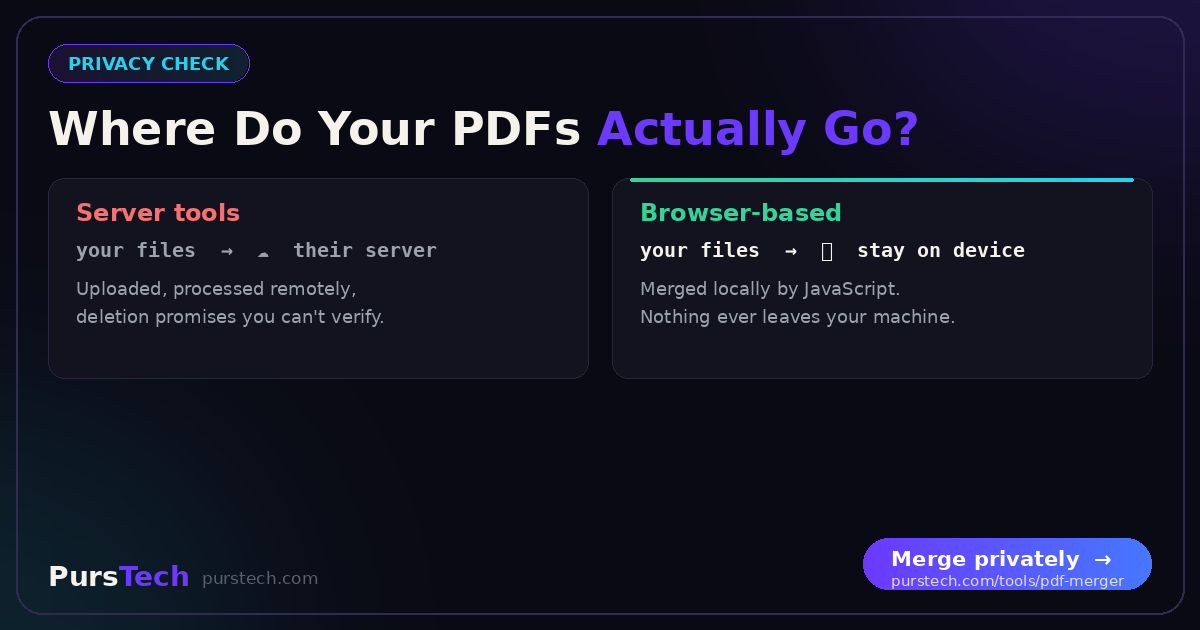
The PDFs you merge often contain sensitive information: contracts, financial statements, medical records, tax documents. Many free "online PDF merger" tools upload your files to their servers, process them, and send back the merged file. Their privacy policies typically claim files are deleted "after a few hours," but you have no way to verify this.
For one-off documents this might be acceptable. For sensitive material, it's a real risk — especially since merged documents often contain personally identifiable information that could be misused if leaked.
Browser-based merging eliminates this risk entirely. The files are read, processed, and saved by your browser. No upload, no server, no third-party access.
How Browser-Based PDF Merging Works
Modern browsers can perform substantial computational work using JavaScript. PDF merging in particular is well-suited to running locally because:
• PDFs are a structured format that can be parsed without specialized hardware
• Merging is fundamentally a concatenation operation — it does not require complex calculations
• Browsers support reading multiple files at once via the File API
When you drop PDFs onto a browser-based merger, the tool uses a library like PDF-lib to read each file's structure, combine the page trees into a single output, then trigger a download. The entire process happens in your browser's memory and ends when you close the tab.
Server-Based vs Browser-Based Mergers
| Feature | Server-Based | Browser-Based |
|---|---|---|
| Privacy | Files uploaded to third-party servers | Files never leave your device |
| Speed for small files | Fast (3-5 seconds) | Fast (2-4 seconds) |
| Speed for large files (100MB+) | Slower (upload + processing time) | Faster (no upload step) |
| Works offline | No | Yes (after first load) |
| Requires signup | Often required | Never required |
| File size limits | 10-100MB typical free tier | Limited by browser memory (~500MB) |
| Best for sensitive documents | No | Yes |
How to Merge PDFs in Your Browser
Using the PursTech PDF Merger:
Step 1: Open the merger in your browser. No login or account required.
Step 2: Drag your PDFs onto the upload area, or click to select multiple files. You can add 2 or more PDFs at once.
Step 3: Reorder the files by dragging them up or down. The order shown is the order they will appear in the merged document.
Step 4: Click "Merge PDFs." Processing typically takes 2-5 seconds, depending on total file size.
Step 5: Download the merged PDF. The file appears in your downloads folder ready to use.
Common Use Cases for Merging PDFs
Tax documents: Combining receipts, W-2s, 1099s, and statements into a single file for your accountant or filing software. Browser-based merging keeps financial details private.
Job applications: Merging a cover letter, resume, and portfolio samples into one PDF for application portals that accept a single attachment.
Legal contracts: Combining a contract with its exhibits, schedules, and amendments into a single executed document. Privacy here is non-negotiable.
Medical records: Patients consolidating test results, prescriptions, and reports across providers. HIPAA-sensitive information should never be uploaded to third-party servers.
Academic submissions: Students merging a paper with appendices, citations, and supporting figures for a single-file submission.
Tips for a Cleaner Merged Document
Compress before merging: If your source files are large, use the PDF Compressor on each file first. A merged file built from compressed sources will be much smaller than compressing the merge afterward.
Remove blank pages first: Use the PDF Splitter to extract only the pages you need from each source. This produces a cleaner final document.
Use consistent orientation: If some pages are portrait and others landscape, the merged document may look messy. Consider standardizing orientation before merging if presentation matters.
Name files clearly before adding: Some mergers display the source filename in the page footer. Clear names like "01-cover-letter.pdf" make organization easier.
The Bottom Line
If you regularly merge PDFs containing personal, financial, or legal information, browser-based merging is the only sensible choice. The convenience cost is zero — it's just as fast as server-based alternatives, and the privacy improvement is total. For any document you wouldn't want a stranger to read, never upload it to a third-party PDF tool.
Weighing your options? We compared the 7 best free PDF mergers side by side — including exactly which ones upload your files to a server and which never do.