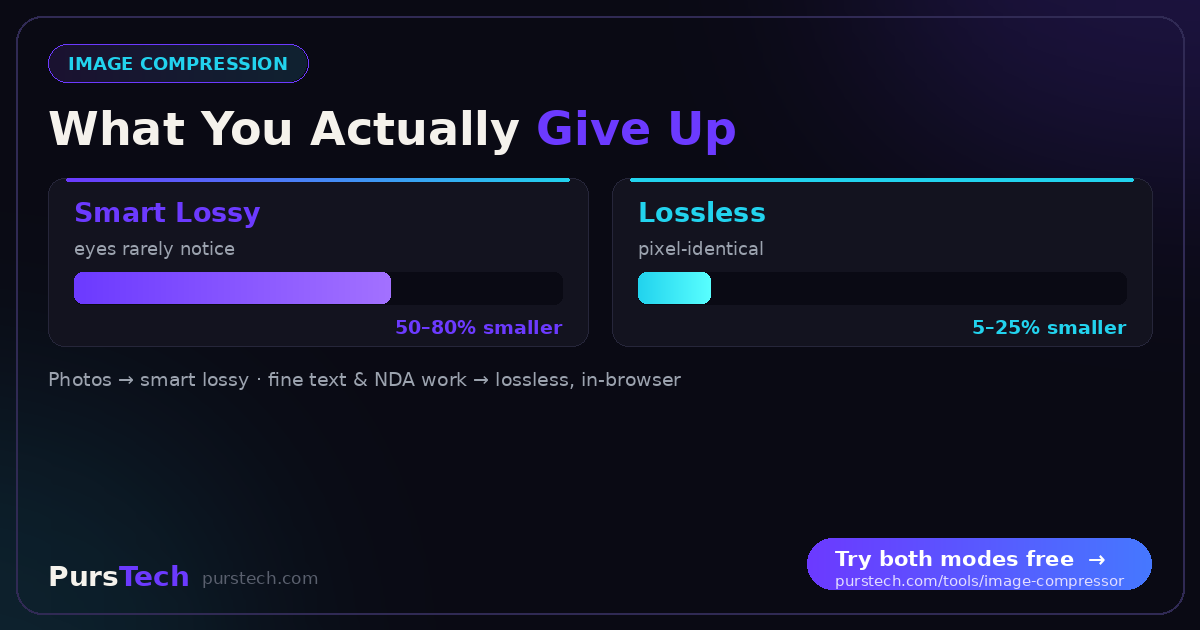
Images are the single biggest contributor to slow websites. A webpage with unoptimized images can be 5 to 10 times larger than it needs to be, causing longer load times, higher bounce rates and lower search rankings. Modern compression algorithms can reduce a JPEG by 60 to 80 percent with no visible quality loss.
Update July 2026: we hand-tested 7 free TinyPNG alternatives — including two that compress entirely in your browser without uploading anything.
Lossy vs Lossless Compression
Lossy compression permanently removes subtle image data to achieve smaller files. JPEG uses lossy compression — ideal for photographs where minor quality loss is acceptable.
Lossless compression reduces file size without discarding any data. PNG uses lossless compression, making it right for logos, screenshots and images where any quality loss would be visible.
Which Image Format Should You Use?
JPEG is best for photographs and product images — can be 10 to 20 times smaller than the equivalent PNG with virtually no visible difference.
PNG is best for logos, icons, screenshots and images requiring transparency.
WebP provides 25 to 35 percent smaller files than JPEG at the same quality. All modern browsers support it — the best choice for new web content.
SVG is a vector format for icons and illustrations that scales perfectly to any size.
How Much Compression Is Safe?
For JPEG, quality settings between 70 and 85 percent produce files 60 to 75 percent smaller with no perceptible quality loss. Below 60 percent, compression artifacts begin to appear. For hero images, stay above 75 percent. For thumbnails, 50 to 60 percent is often acceptable.
Dimensions Matter as Much as Compression
Always resize to your actual display dimensions first. Good rules of thumb: hero images at 1200–1600px wide, blog images at 800–1200px, thumbnails at 400–600px.
Impact on Performance and SEO
Google's Core Web Vitals LCP metric measures how quickly the main image loads — unoptimized images are the leading cause of poor LCP scores. Research shows a one-second delay in load time reduces conversions by 7 percent.
Best Practices
Always compress before uploading. Use WebP as your primary format. Keep originals separately so you can recompress at different settings later. Test results on both desktop and mobile.