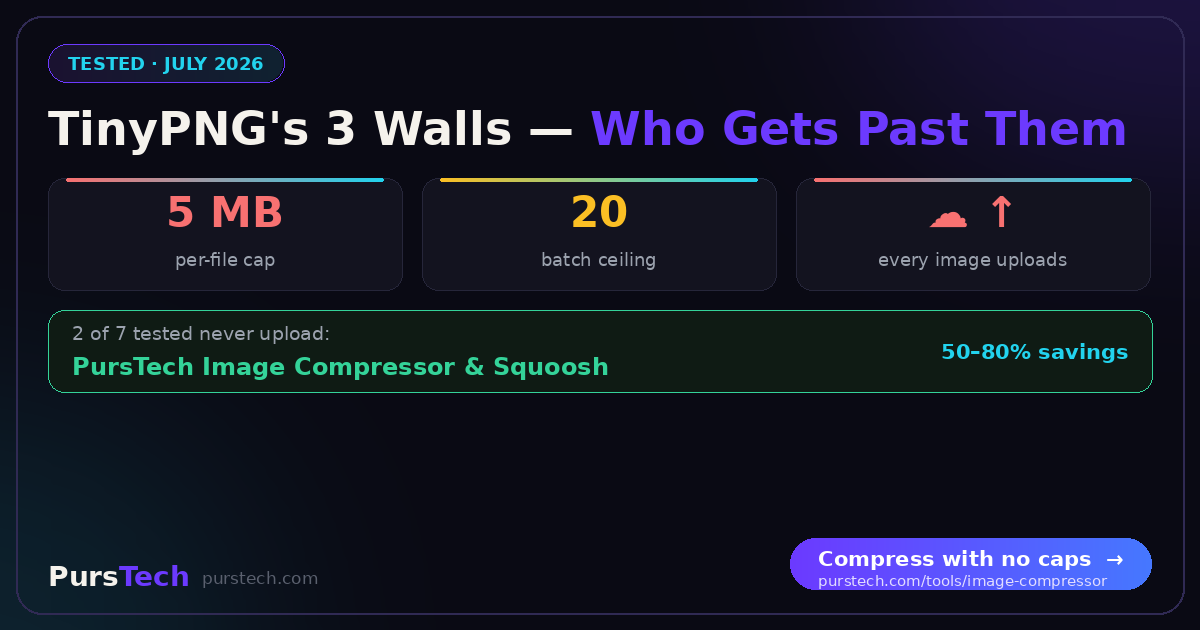
TinyPNG earned its reputation — drop a PNG on the panda, get back a file half the size that looks identical. But sooner or later you hit one of its walls: the 5 MB per-file cap, the 20-image batch ceiling, or the quiet fact that every single image you compress is uploaded to their servers first. This guide compares seven free alternatives honestly — what each one does better than TinyPNG, and what it does worse.
The Quick Answer
Escaping the upload (privacy): use a compressor that runs entirely in your browser — the PursTech Image Compressor or Google's Squoosh. Your images never leave your device.
Escaping the limits: Optimizilla and iLoveIMG offer similar batch web workflows with different caps.
Maximum control: Squoosh, with per-image codec settings and AVIF output.
Mac power user: ImageOptim, a free local app with no limits at all.
What TinyPNG Gets Right (Credit Where Due)
TinyPNG's smart lossy engine is excellent. It selectively reduces the color palette of a PNG in a way human eyes rarely notice, routinely cutting 50–80% of the file size. It now handles JPEG and WebP too, and TinyJPG is literally the same service under a second name. If you compress a handful of small, non-sensitive images a week, you may not need an alternative at all.
The Three Real Reasons People Switch
1. The limits. Free use stops at 20 images per batch and 5 MB per file. Modern phone photos and full-page screenshots blow past 5 MB constantly, and the fix is a paid plan.
2. The upload. Every image travels to TinyPNG's servers for processing. For holiday photos, fine. For client work, unreleased product shots, or screenshots containing personal data, that is a real consideration.
3. No control. One button, one result. There is no quality slider, no target file size, no format conversion choices. Great for simplicity — limiting when a form says "maximum 200 KB" and you need to hit it exactly.
The 7 Alternatives, Compared Honestly
1. PursTech Image Compressor — private, batch, free
The PursTech Image Compressor compresses up to 20 images at once with a quality slider, live before/after comparison and file-size readout, plus one-click WebP conversion. The structural difference from TinyPNG: compression runs in your browser — images are processed on your own device and never uploaded anywhere, so there is no file-size paywall and nothing to trust. Honest caveat: for PNGs with heavy transparency, TinyPNG's specialised palette engine can still edge out browser-based compression — for JPEGs, WebP and general use, you will not miss it.
2. Squoosh — the control freak's choice
Google's Squoosh also runs locally in the browser and gives you everything TinyPNG hides: codec choice (MozJPEG, OxiPNG, WebP, AVIF), quality sliders, resize on export, and a split-screen zoomable before/after. The trade-off: it processes one image at a time — superb for perfecting a hero image, tedious for thirty product shots.
3. Optimizilla — the closest like-for-like
Optimizilla feels like TinyPNG with a quality slider: upload up to 20 PNG or JPEG files, tweak the compression level per image with a live preview, download the batch. It uploads to a server like TinyPNG does, so it solves the control problem but not the privacy one.
4. iLoveIMG — batch workhorse in a suite
Part of the iLovePDF family, iLoveIMG compresses batches quickly and pairs it with resize, crop and convert tools in one place. Free tier limits apply and files are uploaded for processing, with paid plans lifting the caps.
5. ImageOptim — the Mac local app
Free, open-source, and entirely offline: drag a folder of images onto ImageOptim and it strips metadata and recompresses with no file count or size limits, ever. Lossless by default (smaller savings, zero quality change) with optional lossy mode. Mac only — Windows users can look at FileOptimizer for a similar local approach.
6. ShortPixel — strongest for WordPress
ShortPixel's web compressor is solid, but its real strength is the WordPress plugin that compresses your whole media library automatically. The free tier is credit-based (around 100 images a month), then paid. If your images live in WordPress, this is the workflow answer rather than a tool-by-tool one.
7. Compressor.io — polished for single images
A clean interface with lossy and lossless modes across JPEG, PNG, GIF and WebP. The free tier caps file size (10 MB) and works one image at a time, with Pro unlocking batch and bigger files. Good occasional-use tool; the limits arrive quickly under real workloads.
The Privacy Angle, Plainly
Every tool above falls into one of two architectures. Upload-based (TinyPNG, Optimizilla, iLoveIMG, ShortPixel, Compressor.io): your image travels to a server, gets processed, and comes back — you are trusting their handling and deletion policies. Browser-local (PursTech, Squoosh) and desktop-local (ImageOptim): the work happens on your own machine, full stop. Neither architecture is "wrong" — but for anything sensitive, local processing removes the question entirely. After compressing, if you also need exact dimensions, the Image Resizer runs the same browser-local way — and if you are preparing product shots, our guide to removing backgrounds free pairs naturally with this workflow.
Verdict
Most people, most images: a browser-local batch compressor — free, private, no caps to remember.
One perfect hero image: Squoosh, with AVIF output and surgical control.
WordPress site: ShortPixel's plugin and forget about it.
Mac folder-at-a-time habits: ImageOptim.
TinyPNG remains a fine tool inside its free-tier fence — the alternatives above are for the day you notice the fence.