You have a 500-word limit, a 2,000-word assignment, or a meta description that must stay under 160 characters — and every app hides its word counter in a different place. This guide covers exactly how to check word count in Google Docs, Microsoft Word and PDF files, on desktop and mobile, plus one universal method that works for text from anywhere.
The Quick Answer (Cheat Sheet)
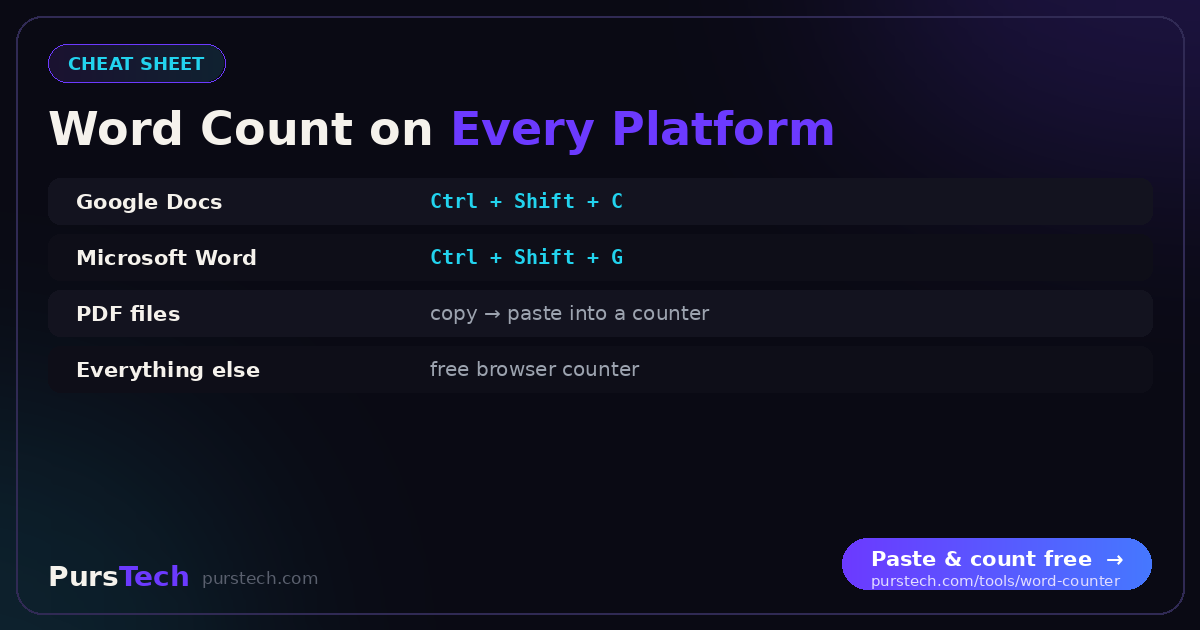
Google Docs: Tools → Word count, or press Ctrl+Shift+C (Windows/Chromebook) / ⌘+Shift+C (Mac).
Google Docs mobile: three-dot menu (⋮) → Word count.
Microsoft Word: the live counter sits in the status bar at the bottom-left — click it for full statistics, or press Ctrl+Shift+G.
PDF files: no reader shows a count — select all, copy, and paste into a word counter (details below).
Anything else: copy the text into a free browser-based counter like the PursTech Word Counter and read every statistic at once.
How to Check Word Count in Google Docs
Google Docs has a full word-count panel, but it stays hidden until you ask for it. Two ways to open it:
1. The menu: click Tools → Word count. A dialog appears showing four numbers: pages, words, characters, and characters excluding spaces.
2. The shortcut: press Ctrl+Shift+C on Windows or Chromebook, or ⌘+Shift+C on a Mac. Same dialog, no mouse. If you check counts often, this shortcut quickly becomes muscle memory.
Counting a section only: highlight any passage first, then open the word count. Docs shows the selection as part of the total — for example "128 of 1,942 words" — which is exactly what you need when only one section has a limit.
Show a Live Word Count While Typing in Docs
Writing toward a limit is easier when the number is always visible. In the word-count dialog, tick "Display word count while typing" before closing it. A small counter appears in the bottom-left corner of your document and updates as you write. Click the counter's dropdown to switch it between words and characters — useful when a form measures characters instead of words.
The toggle applies per document, so you can keep it on for essays and off for notes.
Check Word Count in the Google Docs App (iPhone & Android)
On mobile the menu location changes, which is why "how to check word count on Google Docs mobile" is one of the most-searched writing questions. The answer is the same on iOS and Android:
1. Open the document in the Google Docs app.
2. Tap the three-dot menu (⋮) in the top-right corner.
3. Tap Word count. You get words and characters for the whole document — and if you select text first, the count covers just your selection.
How to Check Word Count in Microsoft Word
Word is the most generous of the three — the count is always on screen. Look at the status bar in the bottom-left corner: it shows the live word count next to the page number as you type.
For full statistics, click that status-bar counter (or go to Review → Word Count, or press Ctrl+Shift+G on Windows). The dialog lists pages, words, characters with and without spaces, paragraphs and lines.
Footnotes and text boxes are excluded by default. If your assignment counts them, tick "Include textboxes, footnotes and endnotes" inside that dialog — the number in the status bar does not include them until you do.
Selections work here too: highlight a passage and the status bar switches to "132 of 2,415 words".
Word for the web shows the same live counter in the bottom status bar. Word on mobile tucks it into the Review tab → Word Count.
How to Check the Word Count of a PDF
Here is the frustrating truth: PDF readers do not count words. Adobe Acrobat Reader, your browser's built-in viewer, Preview on Mac — none of them display a word count, because a PDF stores positioned characters rather than flowing text. Three reliable workarounds:
Method 1 — copy and paste (fastest): open the PDF, press Ctrl+A (⌘+A on Mac) to select everything, copy, and paste into a word counter such as the free PursTech Word Counter. You instantly get words, characters, sentences, paragraphs and reading time. This is the quickest way to check the number of words in any PDF.
Method 2 — convert to Word: when a PDF has complex columns or tables that copy messily, convert it with a PDF-to-Word tool first, then read Word's status-bar count. Conversion preserves the text order, so the count is accurate.
Method 3 — scanned PDFs need OCR: if the PDF is a scan or photo, there is no selectable text to copy. Run it through an image-to-text (OCR) tool to extract the text, then count the result. Everything runs in your browser, so the document never leaves your device.
What About Google Slides, Presentations and Everything Else?
Plenty of apps simply have no counter. Google Slides offers no word count at all; Apple Pages hides one under View → Show Word Count; email drafts, LinkedIn posts, YouTube descriptions and subtitle files give you nothing. The pattern is the same every time an app lets you down: select the text, copy it, and paste it into a counter in a browser tab.
The Universal Method: One Counter for Everything
Rather than memorising a different menu for every app, keep one browser tab that handles all of them. Paste any text into the PursTech Word Counter and it instantly checks the number of words, characters (with and without spaces), sentences and paragraphs — plus reading time, speaking time and keyword density, which no built-in counter provides.
Two details matter for anything sensitive: it is free with no login, and the counting happens entirely in your browser — your text is never uploaded to a server. Paste a confidential contract or an unpublished manuscript and it stays on your device.
Why the Exact Count Matters
Word limits are rarely decorative. College application essays are cut off at hard caps, journal abstracts are rejected over a 10-word overshoot, ad platforms truncate headlines mid-sentence, and search engines trim meta descriptions around 160 characters. Checking the real number takes ten seconds with the methods above — and once you know where the counter lives in each app, you will never guess again.